
GoLearn HomePortal Guide
How do I access HomePortal?
When the GoLearn member completes the initial booking at a facility, the receptionist will send an activation link to the members email address. Please check your junk folder if it isn’t in your inbox. Emails will come from this no reply address: [email protected]
Once activation has been complete, you can use the following link to access the HomePortal page. Please note that you must complete HomePortal registration through the link the facility have sent you first.
What information can I access on HomePortal?
- When the member is ready to progress to a different class
- When a member has passed a badge
- The member’s current competencies
- A history of all the classes the member has attended, and the previous badges awarded
- When the member is ready to top up (if a cash payer)

How do I find out when my child is ready to progress?
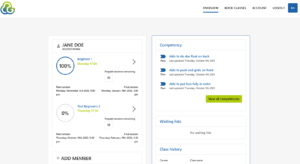
In the Overview section you will see all the classes currently being attended. If there is anything requiring your attention it will be marked with a yellow box. If your child is identified as being ready to move, then you can select move.
Moving classes
Once move has been selected, the movement page will be displayed. On this page you will see the current class they attend on the left-hand side and the title of the class they have been selected to move to on the right-hand side. Please check the pool they are to attend on the right-hand side is correct. Below this you will find a list of available classes in day and time order. The list will show the name of the class, the time, the teachers name, the number of spaces and then the option to move to this class. Choose the class then select move.
Confirming a move
Once the new class has been selected you will be able to see the date of the final session in the current class and the date of the first session in the new class. To confirm this change, select move on the right-hand side; otherwise select back to choose a different class.
How do I find out when my child has achieved a badge?
In the Overview section, select view when a badge has been achieved. On this page you will see the badge name, date achieved, and the class attended.
How do I find out my child’s current competencies?
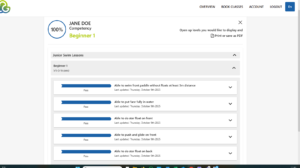
Click on the member’s name. In this section you can view the assessment information, course history and badges awarded. In the current class you can see the following information:
- the member’s name
- the class currently being attended
- the instructor’s name
- how far through the level the member has progressed eg 95%
Each competency is listed with the grade currently achieved and the date last assessed. Please note that once the member has achieved 100% in their current level, an email will be sent notifying you that the member has achieved a badge. This does not mean they are ready to move to the next level; a further email will be sent as soon as they are ready.
How do I top up for the next ten sessions?
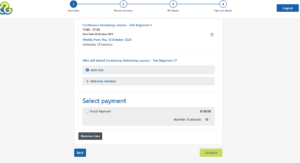
Top up must be completed before the last session commences. The GoLearn system automatically removes members with no sessions remaining and the space becomes bookable for other members.
Members can top up at their local swimming facilities or through HomePortal.
Payment due dates
In the Overview tab on the left, you will see a yellow box highlighting payment will be due. Select “Pay” on the right-hand side.
Amount due
This screen shows you the amount that will be due (the figure given in the image is just an example). Select “Make Payment” to be transferred to the payment screen and enter your card details.
A member can only top up on HomePortal when there are 3, 2 or 1 sessions remaining. If you wish to top up beforehand, this can be done at the local swimming facility.
Top-up payment success
Once you have completed the top-up process you will receive the following onscreen message.
How do I change my password?
Select Settings on the left of the page. The screen to change your password will be displayed. Simply type in your existing password and then set a new password. If you have forgotten your password, this can be reset at any of our swimming facilities.